Summary
Traffic Getting SEO Plugin™ will not work without the IonCube loader (which is free) so…
This process will show you how to enable (turn on) the IonCube loader on select cPanel web host providers.
This solution may not work at all web hosts, but it definitely works on thousands of them so most of you will be all set.
If you don’t want to mess around with the Ioncube loader problem at all…
Use these webhosts:

- https://www.undergroundtraininglab.com/hostgator

Or you can use these hosts and enable ioncube yourself in less than 1 minute:
Step-by-Step Process for Enabling IonCube Loader:
Step 1. Login to your cPanel.
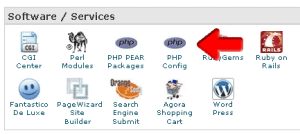
Step 2. Click on [PHP Config].
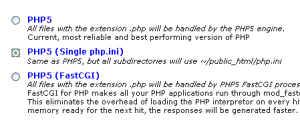
Step 3. Select [PHP5 (Single php.ini)] and then click [Save Changes].
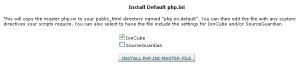
Step 4. Check the box [IonCube] and then click [INSTALL PHP.INI MASTER FILE].
Step 5. At the bottom of the page, click [Go Back].

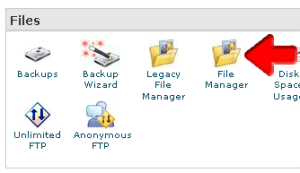
Step 6. Click on [File Manager].
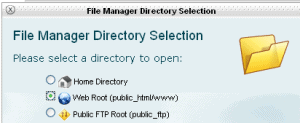
Step 7. Select [Web Root (public_html/www)] and click [Go].
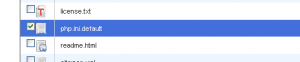
Step 8. Look for the file ‘php.ini.default’ and check the box to the left of it.
Step 9. Click [Rename] at the top of the page.
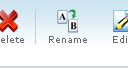
Step 10. Rename the ‘php.ini.default’ to ‘php.ini’ and click [Rename File].
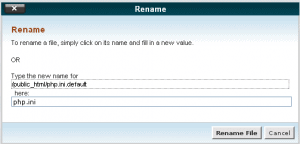
Step 11. You’ve successfully activated the ionCube loader for this web host.
Daren says
Thanks for the crystal clear instructions- less than 60 seconds in Blue Host.
Cheryl says
Your instructions were almost perfect (one little tweak needed for the renaming of the file on bluehost) so it was very easy to do. Thank you for the thorough and easy instructions!
Frank says
Worked great for me on HostMonster, many many thanks!
Ford says
Hey Jeff I have the seo plugin on a couple of different sites but when I try to up grade to the latest wordpress it doesnt seem to work. I have just set up an new site using the latest version 3.0.4 of wp and on the page that shows us says that I need to use a 2.7 version or newer. Ion cube is set up but still no luck. Do you have any suggestions??
Jeff Johnson says
Looks like you may have an older version of TGSP. Please make sure your download the most recent version and follow the instructions at:
https://www.undergroundtraininglab.com/tgsp-install/
Dave says
Thanks Jeff for this tutorial! Everything works ok now. Appreciate your help!
Don says
If my wife has already installed your plugin in hostgator, Does it work for all the websites on hostgator or do we have to install for each website? Thanks for the free plugin and the videos. Don
Jeff Johnson says
each wordpress installation needs it.
Britt Phillips says
I’m hosted at GoDaddy and althought it wasn’t click and go simple, it really wasn’t that bad to get it working. A quick call to my host and simply following the great instructions to install the ioncube did the trick.
My site optimization is sitting at over 75% now.
Thanks Jeff.
carlos says
I am using 1&1 webhost an i am unable to make it work, can you give some idea on how to be able to use with them?
Jeff Johnson says
we use it with 1and1 so please contact them and ask them if you can help you out… they should know what to do.
Miodrag Milenkovic says
Your RSS feed doesn’t work in my browser (google chrome) how can I fix it?
Jeff Johnson says
That’s kind of funny considering my feed is by feedburner, which is owned by google. Sorry, but i’ve never used Chrome so I don’t know how to fix it.
Kristen says
Users on the (mt) Media Temple gridserver will be able to use this article to quickly load up ioncube libraries. Worked like a charm for me:
http://kb.mediatemple.net/questions/144/How+can+I+install+IonCube+loader+libraries+on+the+%28gs%29+Grid-Service%3F