Summary
This process will show you how install WordPress with Fantastico.
Using Fantastico is the fastest and easiest way to install wordpress.
The whole wordpress installation process takes less than 5 minutes with fantastico.
No database setup, no file uploads… push a button and Fantastico does all the work for you.
Here’s a list of web hosting providers that we use and recommend, and most offer fantastico with their accounts:
Sorry, we are in the process of updating this video so it is temporarily unavailable. Please check back soon.
Step-by-Step Process
Step 1.Login to your cPanel enabled web host
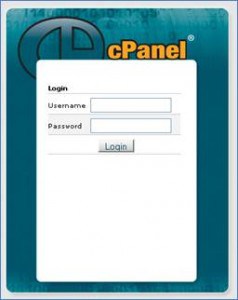
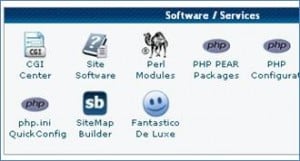
Step 2.Click on [Fantastico De Luxe].
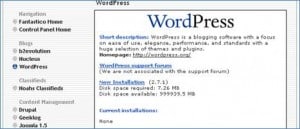
Step 3.Click on [Wordpress] on the left, then click on [New Installation].
Step 4.Fill in the installation form, similar to the screenshot below:
4.1.Install on domain – Select the domain to install WordPress on
4.2. Install directory – If you want your blog in a different location than the root (i.e. – ‘domain.com/blog’), provide a directory name. (Optional)
4.3. Administrator username – Type in a username to access your WordPress blog
4.4.Administrator password – Type in a password to access your WordPress blog
4.5.Admin nickname – Type in a admin nickname
4.6. Admin email address – This is the email address associated with the admin. For example, if you lose your blog’s password, you can request a new password, which will be sent to this email address.
4.7.Site Name – Type in the name of your blog
4.8. Description – Type in a short description about your blog.
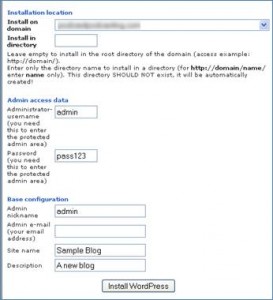
Step 5.Click [Install WordPress].
Step 6.Click on [Finish installation].
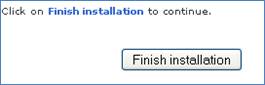
Step 7.Save your blog’s Username and Password and click on the link that looks similar to this: http://www.yourdomain.com/wp-admin
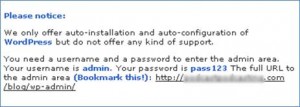
Step 8.Type your Username and Password that you got from your previous step in the login screen and click [Log In].

Step 9.After logging in you should be brought to your blog’s Dashboard similar to the screen shot below:
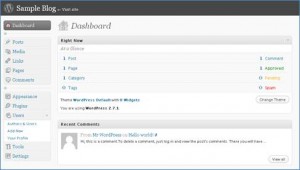
Step 10.Finally click on [Visit Site] in the top left of your WordPress Dashboard to see your newly installed blog!

Step 11.Your new blog should look similar to the one below:
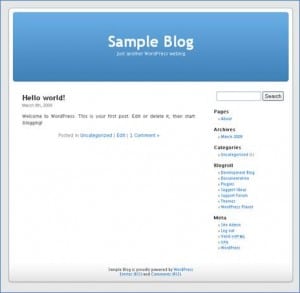
Step 12.At this point you have successfully completed the installation of your new WordPress blog using Fantastico!
Tolulope Olulana says
Thanks a lot Jeff. Very apt and comprehensible. However, Jeff can I
Ask a question? Why is it that Fantatisco is not available on some hosting
service providers’ Cpanel. Is it that Fantatisco must be installed in an event that a particular Cpanel lacks it? Thank you
Jeff Johnson says
I’m glad you enjoyed it.
Fantastico is something the hosting providers choose to provide, some do, some don’t… it installs third party applications and some hosting provides either don’t want them on their servers or they don’t want the headache of their clients asking them for support on those third party applications.
Mervin Bering says
Thank you for your post that nice easy to read. Your web site has a lot of good topics articles, I would not fail to trace the address of your web-site my friend(s) and visit often.
Roni Mmi says
Hi, thanks for your nice tutorial. i just installed WordPress on my server. its seems easy for me to install in Cpanel. but my previous host was in EHCP Control panel. so. i was confused.
SeoWritingExpert says
This is such a simple tutorial on WP installation, that I am sure my 7 year old will also be able to follow. Many Thanks.
arvinda shah says
Great information,
very help full.
Arvinda shah
Val Rollie says
First-rate Entry, i possess being reading this internet the past few a number of days but in our day i took the time to say thanks for your related information that you expression around.
Roger says
Great info. Very helpful
Many thanks,
Roger
Jonathan says
Hey there guys. Having trouble with uploading the SEO Plugin.
I’ve got it downloaded to my desktop as a folder. When it downloaded the folder was automatically titled “seo-blog”. I’m on a Mac so I did nothing to the folder.
I followed the directions on the site for uploading the plugin. But when I get to the upload button on WordPress it won’t pick up the folder. If I drag it in there it just shows me all the files within the folder.
I’m missing a step here, I know, but can’t really tell what it is.
I don’t really have an option to unzip the folder, and when it gets saved it doesn’t have a .zip extension so I’m not sure wordpress is picking it up correctly.
Help?
Jonathan –
Jeff Johnson says
Try downloading again, and make sure you select Save File rather than Open File. It sounds like the file was automatically unzipped. You could alternatively just add the folder to a .zip file and upload it using WordPress’ plugin installer.